
Other people's plugins.
NAMper hosts the plugins you already own, anywhere in a chain — AUv3 on iOS, AAP on Android — and NAMper itself turns up as an effect in other apps. Both directions have rules worth knowing before a gig.
03.1Adding an AU effect
Tap the dashed ADD chip on a chain to open the blocks palette. Right at the bottom of the list, past Utility, sits the Plugins section with a single entry: the AU Plugins submenu.
Open it and you get every Audio Unit effect installed on the device, one submenu per manufacturer with the plain plugin names inside. Nothing needs scanning or enabling — if an app on your phone ships an AUv3 effect, it is in that submenu.
If the submenu is empty it reads No Audio Unit effects installed. Apps that ship AUv3 plugins make them appear here. That is the normal state on a fresh device: AUv3 plugins arrive as ordinary App Store apps, so you install the app and its plugin shows up here on the next visit.
Pick a component and NAMper creates the block with that plugin already loaded, then opens straight into the plugin's own interface — no empty shell, no second step. The block's chip on the chain wears the plugin's own name, and it behaves like every other block: tap the footswitch strip to bypass it, hold and drag to move it, long-press it for Remove.
03.2The plugin interface
The block sheet puts a thin status row above the plugin: an hourglass while the component is being instantiated, a green check once it is live and passing audio, and the plugin's name beside it. Under the status row you also get the usual block IN and OUT meters, so you can see what the plugin is being fed and what it hands back.
Loading is not always instant. While a component starts up the sheet reads Loading the plugin… — larger plugins take a moment on first use, and the signal passes through untouched until the plugin is ready.
Swapping the plugin
The circular-arrows button in the sheet is Replace plugin. Its menu is the same component list, and picking a different one swaps the plugin inside the existing block, so the block keeps its place in the chain and its bypass state. Use it when you want a different delay in the same slot rather than tearing the chain apart.
The plugin's parameters as NAMper's controls
The plugin's own view is what opens. Beside Replace plugin a second button lists every parameter the plugin shows a host, as NAMper's own controls: in the plugin's groups, with a search field once the list is long, and a star on each — the starred ones gather under Favorites at the top and sit under the plugin's own view as well, so the three knobs you reach for are a tap away. A long press on one offers MIDI Learn, as on a block's knob, and the control map's Plug-in parameter (CC) action reaches the same parameters. The MIDI button in the status row (MIDI to the plug-in: on / MIDI to the plug-in: off) decides whether your controller's messages reach the plugin itself — a wah that takes MIDI — or stop at NAMper's map.
When a plugin has no view of its own
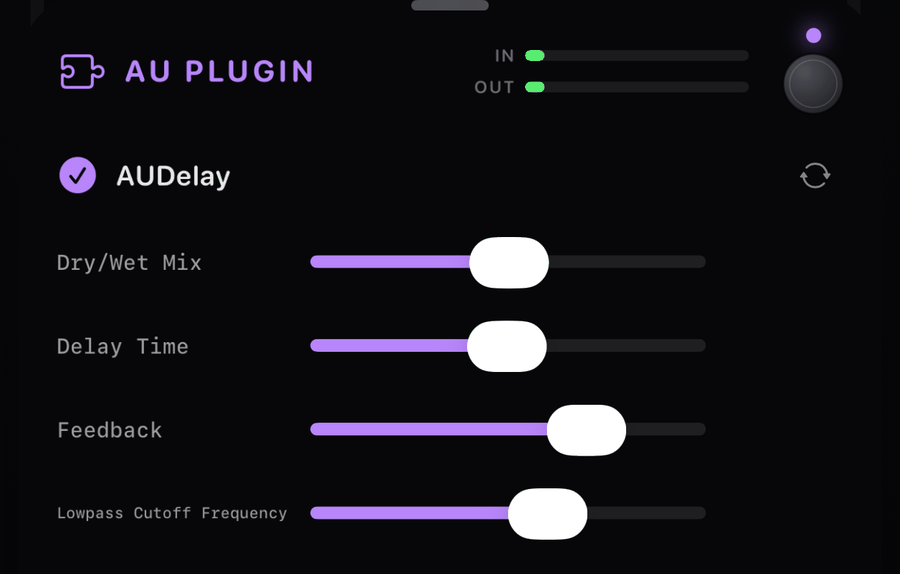
Most plugins draw their own interface and NAMper embeds it inline, exactly as its author designed it. Some ship no view at all. For those, NAMper draws its own generic list — up to 24 parameters, each as a label and a slider. That is what the screenshot above shows: Apple's AUDelay has no custom panel, so you get named sliders instead.
iOS can improvise an editor for a viewless plugin, but some units crash inside it. NAMper draws the parameter list itself instead, which is plainer to look at and far more likely to survive a set.
03.3Limits worth knowing
| Limit | What it means |
|---|---|
| Effects only | Only effect components are listed. AU instruments are not hostable, so a synth or a drum machine will never appear in the submenu. |
| 16 plugins | Sixteen hosted plugins at once, counted across every rig and every branch. In practice you will run out of processor long before you run out of slots. |
| Stereo | Plugin input and output run in stereo, at whatever sample rate the engine is on. |
| Chains, master, returns | AU plugins go inside rig chains, on the MASTER section and on the two send returns — the same Plugins section sits in all their add menus. |
If a plugin fails to render, NAMper leaves the signal dry for that block rather than dropping out. You keep hearing your guitar, minus that one effect — which is the right failure on stage, but it also means a plugin can go quiet without an obvious alarm. If an effect stops doing anything, check the status row in its sheet.
Third-party plugins also cost processing power that NAMper cannot budget for. Watch the DSP load chip in the Rig header after you add one; if it moves into amber or red, step the buffer size up in Settings.
03.4Settings and presets
A hosted plugin's own settings — everything you changed inside its interface — are stored with the block and travel inside your NAMper preset. Save the rig, load it tomorrow, and the plugin comes back set the way you left it.
Plugin state is captured at the moment you close the block sheet. Tweak a plugin, leave its sheet open, save the preset from behind it, and the preset stores the state from before your edits. Make it a habit: close the plugin sheet first, then save.
The same applies to global snapshots and to sharing a preset with someone else — whatever was captured on the last sheet close is what goes into the file. Note that the preset carries the plugin's settings, not the plugin: whoever opens it needs the same Audio Unit installed on their device.
One more thing to expect: using Replace plugin clears the stored state. The settings belonged to the old component and mean nothing to the new one, so the swap starts you at the new plugin's defaults.
03.5NAMper as a plugin
NAMper also ships as an AUv3 effect, so you can load it inside GarageBand, AUM, Logic or any other AUv3 host and record it onto a track there. In a host's plugin browser it looks like this:
| Field | Value |
|---|---|
| Name | retroaktive: NAMper |
| Manufacturer | retroaktive |
| Description | NAM amp & effects chain |
| Type | Audio effect — not an instrument |
It takes stereo in and gives stereo out, but the two input channels are summed to mono inside: a guitar-style mono front end feeding an amp. That is deliberate, and it is what you want for a DI'd guitar on a mono track.
The app's face in the host
The plug-in opens with the app's own rig in the host's window: the chain of blocks, the scenes, the block editors, the library of captures and impulses, the presets and the settings. It is the same face on the iPhone and iPad (the AUv3 in GarageBand, AUM, Cubasis and the rest) and on the Mac (Audio Unit, VST3 and CLAP — see Mac). Pick a preset and the plug-in builds that rig on the track, with its captures from the library and its impulses from the bundled set; the session carries the rig itself, so a project opens on a machine without the library.
The session also carries every capture and impulse the rig names, up to 8 MB of them. A project made on a Mac and opened on an iPad, or on another computer, puts those files in the library there and finds them by name, wherever the rig says they were. A file of the same name already in that library with other content is left alone — your own presets may name it — and the project's copy lands beside it under a tagged name, which the rig is made to say. Saved on the second machine, the project carries its files on. A capture or an impulse dropped on a block in the plug-in's window is imported into the library like a picked one, so a project that uses it can carry it too. The plug-in's Troubleshooting page shares its own log, which says what became of each file.
The header is one row: the NAMper mark (it opens About — the version, the help links, the credits, and a way to the app's tip jar), the preset, the scenes, the meters, the library, the tools, the settings and the bypass. On a narrow host the row scrolls sideways, with the settings and the bypass pinned at the end so the switch is always in reach.
- The tools are the app's header tools: the DSP load, the key, the metronome with its tempo (a tap switches the click, a hold sets the tempo) and the tuner, each opening as a panel over the chain.
- Settings carries the appearance and the themes, shared with the app; the TONE3000 account, signed in and out inside the plug-in; the DSP switches — Lite NAM models, Stereo amp, Tails on a switch, Align the rigs; a MIDI OUT card — the channels, a scene as a program change or a control change, the echo to a controller (off in a plug-in, where the output often goes to a track), the bend range; the host routes what goes out — and the door to the app's control map. The audio interface is the host's, so it is not there.
What belongs to a whole app rather than a track stays out: the looper, the sampler, the loop tracks, backing tracks and the Send block are hidden inside a host. The chain's inputs are the plug-in's input and the host's sidechain, which the compressor can key off.
One library with the app
On iOS the app and its Audio Unit share one library. A preset you save in the app is in the plug-in's list the next time GarageBand or AUM opens it, and a capture you download inside the host is in the app's library. The plug-in's preset list shows one bank at a time, like the app's: the bank menu under the search field switches it, and User 1 is where a save lands. The NAMper folder in the Files app (On My iPhone → NAMper) is the door into that library: captures, impulses, zips and presets dropped there are taken in the next time the app comes to the front.
The 18 parameters
The host still sees a fixed set of automatable parameters — the rows it lists in its own panel and writes into automation. Each reaches the first block of its kind in the rig that is loaded: Gate On is the rig's gate, Bass its EQ, Reverb Mix its reverb, the way the app's MIDI map does.
| Block | Parameters |
|---|---|
| Gate | Gate On, Gate Threshold |
| Compressor | Comp On, Comp Threshold, Comp Ratio |
| Drive | Drive On, Drive Gain, Drive Level |
| Tone | Bass, Mid, Treble |
| Delay | Delay On, Delay Time, Delay Feedback, Delay Mix |
| Reverb | Reverb On, Reverb Decay, Reverb Mix |
The on/off parameters are floating-point values from 0 to 1, so most hosts draw them as sliders rather than switches — anything at or above the halfway mark is on. In the Audio Unit the rig list is the host's own preset menu: every factory rig, then every preset you saved, by name.
The VST3, the CLAP and the Audio Unit take MIDI from the host — controllers, notes and program changes reach the rig's control map as they do in the app. Each message keeps its place: it lands on the sample the host put it on, not on the start of the buffer, and a press and release inside one buffer are two messages. A host that gives an effect no MIDI at all — GarageBand on an audio track — is covered: the Audio Unit reads the MIDI devices itself, so MIDI Learn and the map work there as in the app, and once the host sends MIDI of its own (AUM, Cubasis) the plug-in listens to the host alone. The host's tempo is the rig's: a synced delay or tremolo follows the song.
You can run the full app and route its output into a DAW, or use the plugin for a quick guitar channel on a track you are already tracking in a host. The recorder and its DAWproject export exist for the first route — see Perform & lyrics.
03.6On Android: AAP
Audio Units do not exist on Android. The plugin format there is Audio Plugins For Android (AAP), an open format, and NAMper speaks it in both directions.
Hosting AAP effects
The Plugins section at the bottom of the blocks palette lists every AAP effect installed on the phone. Empty, it reads No AAP effects installed. Apps that ship Audio Plugins for Android make them appear here. Pick one and the block opens with the plugin's parameters as sliders; if the plugin ships its own interface, Open plugin UI opens it in a window of its own. The block's replace menu swaps the plugin, and the parameter values and the plugin's state travel inside your preset just as they do on iOS.
NAMper as an AAP effect
Any AAP host finds NAMper as an effect named NAMper by retroaktive: stereo in, stereo out, the same eighteen parameters as the AUv3, with its state saved by the host. Unlike the AUv3 it is still the compact amp-and-effects channel — the chain behind those parameters and three presets, Clean, Crunch and Lead — not the whole app.