
Every switch, in order.
NAMper's Settings sheet is short on purpose. This page walks it card by card, row by row, with the defaults and what each control really does — and ends with the handful of settings that live somewhere else entirely.
09.1Opening Settings
Tap the gear icon in the header of the Rig tab. That is the only way in, and the header only exists on that tab — from Loop, Sample, Perform or Mix you go back to Rig first.
Settings is an index rather than one long sheet: a row for About and seven pages, one tap each, so the thing you came for is on a page about that thing. One choice stays on the index itself, under FACTORY PRESETS: Built-in amps, TONE3000 captures or HyperReal (the chip with the HyperReal mark, and the default) — which amps the factory bank plays; see HyperReal in the factory bank. When the processor cannot carry HyperReal, the bank steps back to the built-in amps and this choice shows it. There is no TONE3000 page — signing in happens in the block that wants a capture.
| Page | What is on it |
|---|---|
| About | Version, the tip jar, credits, and HELP & LINKS — the documentation, the website, the Telegram community, support and the privacy policy. |
| Audio | Interface, sample rate, buffer, input trims — below, with the channel names. |
| Control | MIDI and input triggers, mapped to anything — its own page: MIDI & control. |
| Stage | How many scenes a rig has (SCENES → Number of scenes, 1 to 16, one setting for every preset — see scenes), the click, the set tempo and key, the lyrics text size and whether the words open themselves, and the looper's auto-loop levels — Set, Lyrics, Metronome and Looper below. |
| Appearance | Light, dark, or whatever the system says, and the themes — below. |
| Packs | Extra content to download, free — the stem splitter is the first — below. |
| Prompts & tour | Launch prompts and the quick tour — below. |
| Troubleshooting | The engine log and the factory resets — Reset and Diagnostics below. |
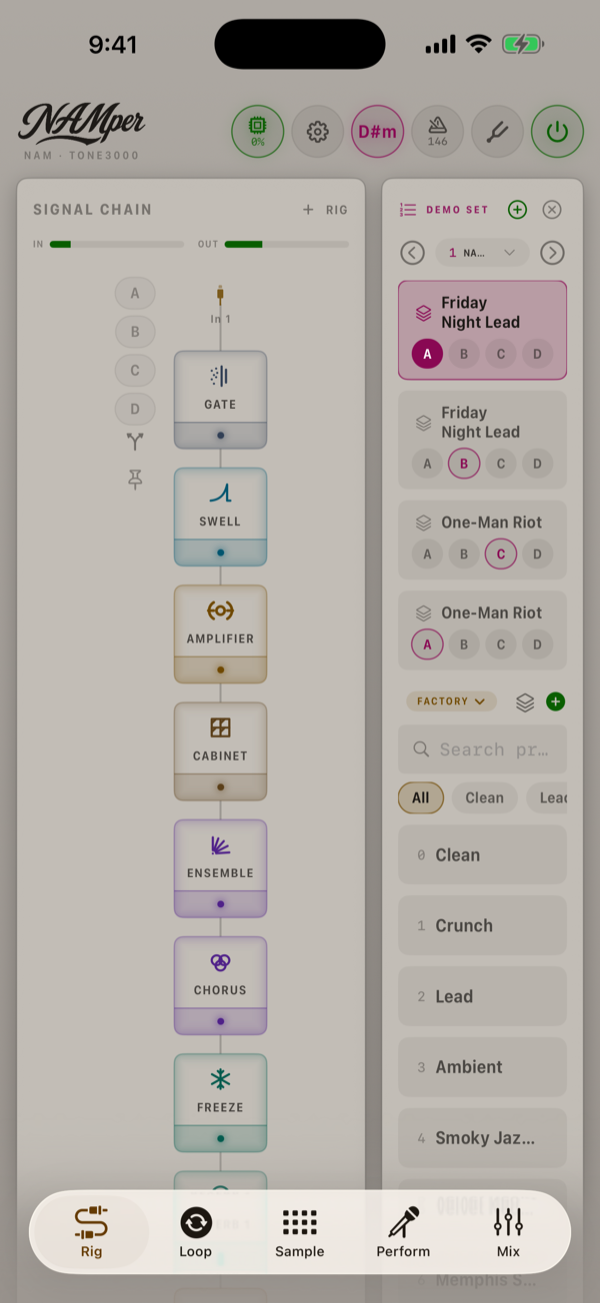
The gear has company in that header row, and it is worth knowing what the neighbours do:
| Item | Does |
|---|---|
| The NAMper wordmark | Opens the About sheet — version, the tip jar, credits, and the HELP & LINKS card with the documentation, the website, the Telegram community, support and the privacy policy. The About row at the top of Settings opens the same sheet. |
| DSP load chip | The engine's load as a percentage, — when stopped — the same reading as the DSP load row on the Audio page. On an iPhone, iPad or Mac the number is how much of the whole device NAMper takes; on Android it is the busiest real-time thread's live load, how much of its time its work takes. The colour is the headroom — how close the busiest thread is to its deadline: green under 60 %, amber to 85 %, red above. A low number on an amber chip is no contradiction: one thread can run short of time while the rest of the device idles. A tap opens the CPU monitor: the busiest thread, the device, the cores and each real-time thread. |
| Gear | Settings — this page. |
| KEY chip | The current key, or the word KEY when unset. Opens SET KEY. |
| Metronome chip | Tap to switch the click on and off; long-press for the SET TEMPO sheet. See the looper. |
| Tuning fork | Opens the tuner. See MIDI & control. |
| Power | Starts and stops the audio engine. Nothing makes a sound until it is on. See getting started. |
09.2Audio interface
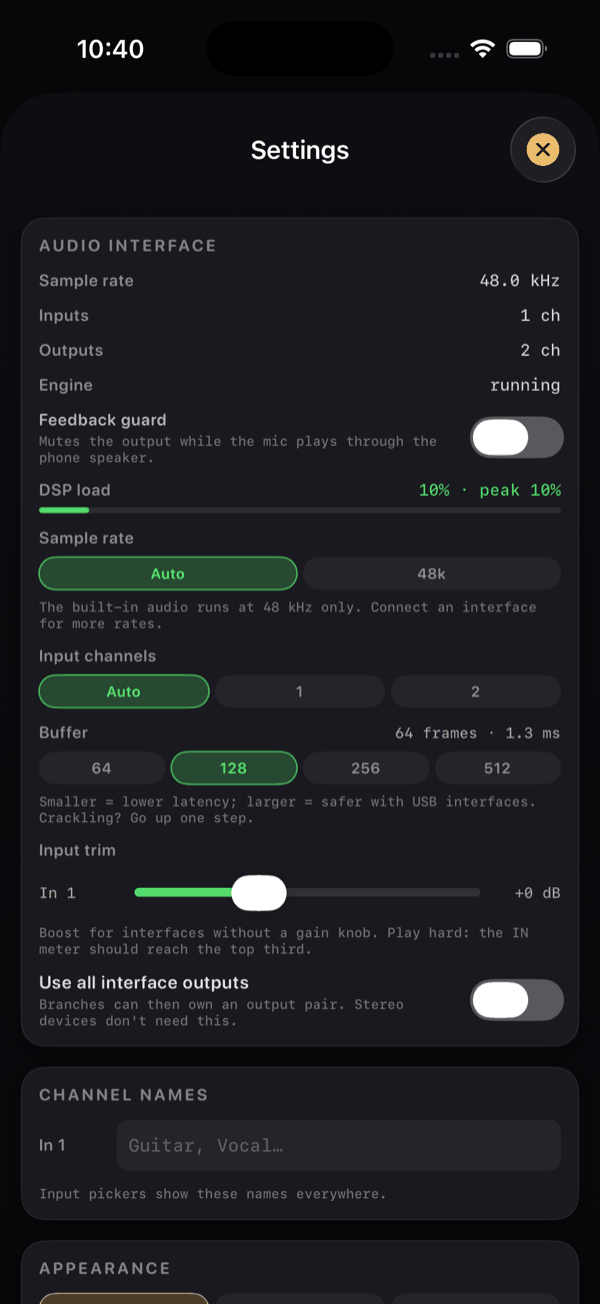
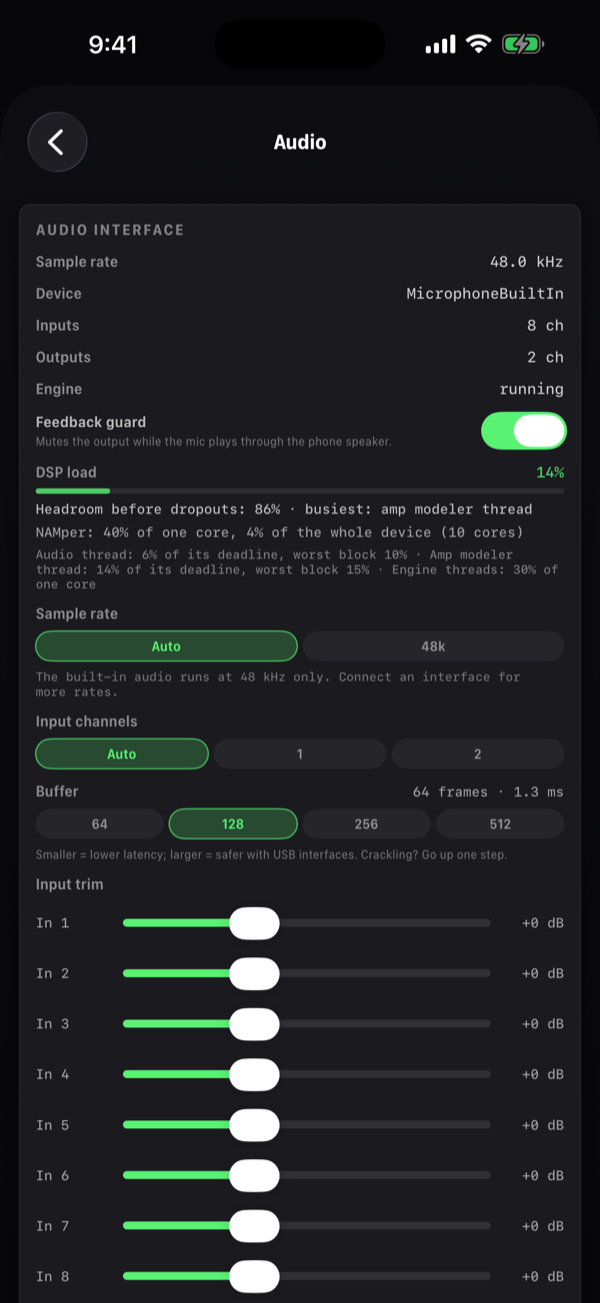
The AUDIO INTERFACE card is the longest one, and the only one whose settings need a relaunch to take effect. The first four rows are read-only: they tell you what NAMper actually got from the system, which is the fastest way to find out why an interface is not behaving. On a Mac the same page also chooses the interface — the input and output devices, the output pair — see Mac. If the interface drops out, the engine pauses and starts again by itself when it comes back, at the same settings and with the loops kept; meanwhile an iPhone or iPad stays silent, a Mac plays through the system's device and an Android phone through its own.
On Android the page is grouped in five cards: AUDIO INTERFACE (what is plugged in and what the sound is Playing through), CONNECTION (the direct USB driver, the rate, the channels, the buffer), INPUT, LATENCY and PROCESSOR. The rows below are the same.
| Row | Control | Default | What it does |
|---|---|---|---|
| Sample rate | Read-only | — | The rate the engine is actually running at, in kHz. |
| Inputs | Read-only | — | How many input channels the current route offers, up to eight. |
| Outputs | Read-only | — | How many output channels the current route offers. |
| Engine | Read-only | — | running or stopped. On Android Playing through takes its place: the direct driver, the system (shared or exclusive), Waiting for the interface… or stopped. |
| Direct USB driver (beta) | Switch | Off | Android: NAMper runs a class-compliant USB interface itself, past the phone's audio system. More. |
| Feedback guard | Switch | On | Mutes the output while the built-in mic plays through the phone's own speaker. Read this one properly. |
| DSP load | Readout + bar | — | The header chip's number and colour, on a bar, shown only while the engine runs. The whole of it — each thread and each core — is in the CPU monitor the chip opens. |
| Sample rate | Chips: Auto, 44.1k, 48k, 88.2k, 96k, 176.4k, 192k | Auto | Sets the engine rate; remembered per route. Changing it restarts the engine. On Android the chips are Auto, 44.1k, 48k and 96k. More. |
| Input channels | Chips: Auto, 1…n | Auto | Caps how many input channels NAMper opens. Leave on Auto unless you have a reason. |
| Buffer | Chips: 64, 128, 256, 512 | 128 | Block size, with a live frames · ms readout. On Android the chips are multiples of the interface's burst; on the direct USB driver they are 96, 192 and 384. More. |
| USB queue | Chips: Auto, 3, 4, 6, 8 ms | Auto | Android, on the direct USB driver only: the audio in flight on the cable. Auto starts low, adds a millisecond at each dropout and remembers what the interface needs. Apart from the buffer. |
| Input trim | One slider per input, −12…+24 dB | 0 dB | Gain for interfaces without a gain knob. Play hard: the IN meter should reach its top third. |
| Use all interface outputs | Switch | Off | Opens every output pair, so a branch, a rig or the click can own its own pair. Stereo devices do not need it. |
| Lite NAM models | Switch | Off | TONE3000's A2 captures carry a lighter sub-model; this runs every capture on it — a fraction of the DSP load, a shade less detail. Captures without one are unaffected. Takes effect at once. |
| Amp modeler on its own thread | Switch | On | A HyperReal amp runs on a processor core of its own, two buffers behind the audio: room for several amps at once, for those two buffers of extra latency. If the thread cannot keep up, the amp goes back to the audio thread by itself. Switching it reloads the amps that play. iPhone, iPad and Android; the Mac and the plug-ins have no such switch. |
| Amp modeler quality | Chips: Live, Studio | Live | How finely a HyperReal amp is computed: Live is lighter on the processor, Studio finer and heavier. A change recompiles the amps that play, with no restart. If a Studio amp keeps the busiest thread past its deadline for two seconds, the amps run in Live and the row reads Studio (running Live: this device cannot keep up) until you pick a quality again. The plug-ins have no such row. |
| Tails on a switch | Switch | On | The blocks a preset switch leaves behind ring out — a delay's repeats, a reverb's decay — for up to eight seconds instead of stopping at the switch, and a delay, reverb, FX loop or plugin that a scene bypasses rings out over the dry (a freeze is held sound, not a tail: it stops). A little more DSP for those seconds. |
| Round trip | Readout + Measure latency…, Reset | — | Android: the latency from output to input the looper lines overdubs up by, measured with a loop cable or estimated from the streams; kept per interface. How to measure. |
| Align the rigs | Switch | Off | Rigs on different inputs are delayed to the slowest of them where the desk sums them, so a guitar and a mic land together. Off, each rig keeps its own latency; the paths of one input always line up either way. |
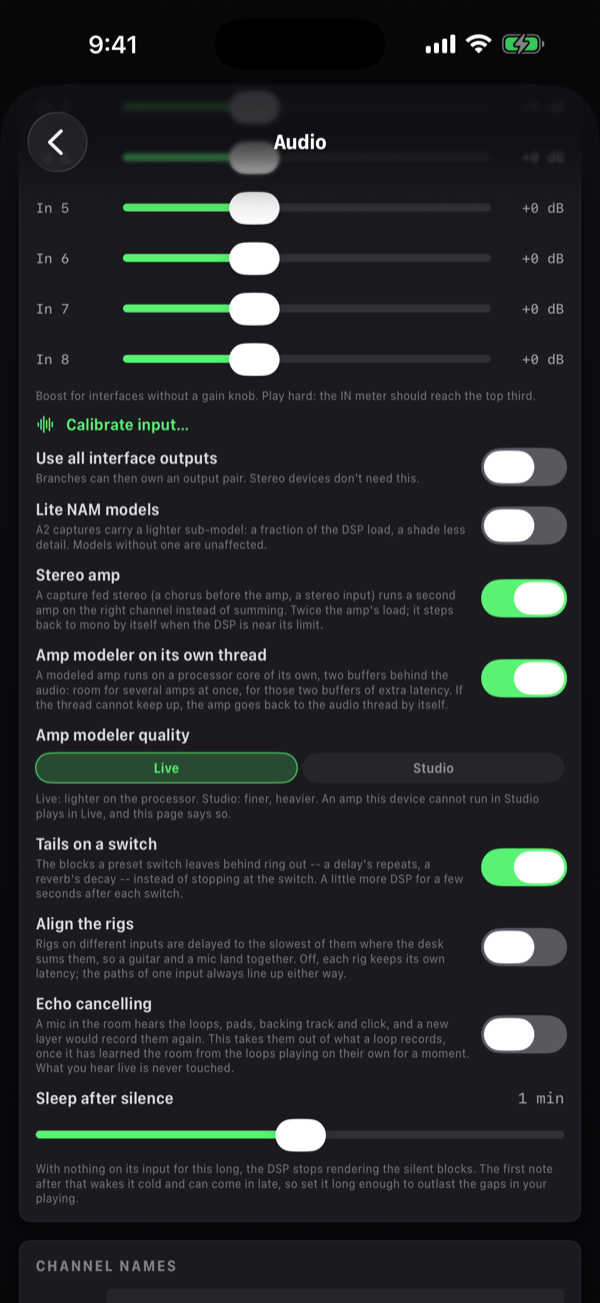
The chips and switches here take effect on the next engine start — some, like the sample rate, restart the engine themselves. If something looks stuck, power the engine off and on before assuming it is broken.
09.3Channel names
CHANNEL NAMES is a text field per input, each row prefixed In 1, In 2 and so on, with the placeholder Guitar, Vocal…. The footnote says what they are for: Input pickers show these names everywhere.
Name them once and those names appear in every input picker in the app — rig inputs, looper track sources, compressor sidechains, the input trim sliders. Channels you leave blank fall back to In <n>.
On a multichannel interface, Guitar and Vocal are much easier to pick correctly mid-soundcheck than In 3 and In 4.
09.4Appearance
Chips: System, Light, Dark. The default is System, and appearance changes apply the instant you tap them.
Under the chips are the themes, one choice per polarity: pick a dark theme and a light one, and System wears the dark one when the phone is dark and the light one when it is not. Four dark themes ship — Studio (the app's own), Midnight Violet, Ember and Deep Sea — and three light ones: Concrete, the default, a light grey a shade down from paper; Desk, the paper-white the app first shipped with; and Linen.
Customize colors… copies whatever theme is worn into your own and lets you set each role by hand — the background, the cards, the text, the knobs, the power button and every block family's accent. Corner radius in the same editor scales every rounded corner in the app at once, from sharp (30 %) to very round (200 %); the themes ship at 50 %. A reset row puts your copy back to the theme it came from.
09.5Set
The SET card is read-only. It shows Tempo (as BPM, or — when nothing is set) and Key (such as Am, or —). It is a status readout, not a control.
The footnote points you at the real controls: Tempo: long-press the metronome. Key: the KEY button in the header.
| Value | Set it from |
|---|---|
| Tempo | Long-press the metronome chip in the Rig header, or the tempo block in the Loop tab. The looper also detects it from your first loop, and selecting a backing track applies the song's tempo. The time signature is on the same tempo sheet — see tempo and the click. |
| Key | The KEY chip in the Rig header. Selecting a backing track applies the song's key. |
09.6Lyrics
One slider: teleprompter text size, from 16 to 34 pt, default 22 pt, with a live preview line reading This is how your lyrics will look.
Under it, Open the lyrics with the song: on, the teleprompter takes the screen when a song with lyrics starts; off, the tab you were on stays where it is and the Lyrics button opens the words when you want them. On by default.
Changing it re-aims the teleprompter live, so if the lyrics screen is open on another device or you come straight back to it, nothing has to be re-timed. Set it for the distance the phone actually sits from your face on a mic stand, not from the sofa. See lyrics and the teleprompter.
09.7Metronome
| Row | Control | Default | What it does |
|---|---|---|---|
| Click level | Slider, −40…+6 dB | ≈ −3 dB | How loud the click is. |
| Click output | Menu: Main, then each output pair by the names the interface's driver gives its channels (3 / 4 when it gives none) | Main | Which hardware output pair carries the click. Shown only when there is more than one pair; picking a non-main pair force-enables Use all interface outputs. |
| Click channel | Chips: L+R, L, R (on another pair, its channel numbers) | L+R | Both channels of the pair, or one of them: a mono click into a single output, the other left for the mix. |
The card's footnote is the useful part: The click is mixed in AFTER the master FX chain — reverbs and limiters never touch it. Pick a separate output pair for in-ear monitoring, and a single channel when the click shares the pack with the mix.
That means your master reverb will not smear the click and your master limiter will not duck the band every time it ticks. Send it to its own pair and the drummer hears the click while front of house does not.
The click itself is switched on and off with the metronome chip in the Rig header, or the CLICK chip in the Loop tab — not from here.
09.8Looper
The LOOPER card on the Stage page tunes the looper's AUTO mode.
| Row | Control | Default | What it does |
|---|---|---|---|
| Silence that closes an auto-loop | Slider, 0.5–4 beats | 1 beat | How long the quiet after a phrase must last, in beats of the tempo heard in your playing, before the take closes itself. Longer for phrases with gaps, shorter for tight ones. |
| Signal that starts an auto-loop | Slider, −54…−24 dB | −40 dB | The level your playing has to stay over for a couple of milliseconds before an armed cell starts recording. Lower is more sensitive; a brush of the strings or the room stays under it. |
| Keep time through the silence | Switch | On | The loop starts playing where it would be had it never stopped, so the count never breaks. Off, it starts from the top when it closes. |
09.9Packs
A pack is extra content NAMper downloads only when you ask for it — the Stem splitter that splits a song into its parts is the first. Every pack is free, with no account: Packs are extra content, free to download. They stay on this device and the NAMper plug-ins use them too. They come from packs.namper.org, and the list is read each time the page opens.
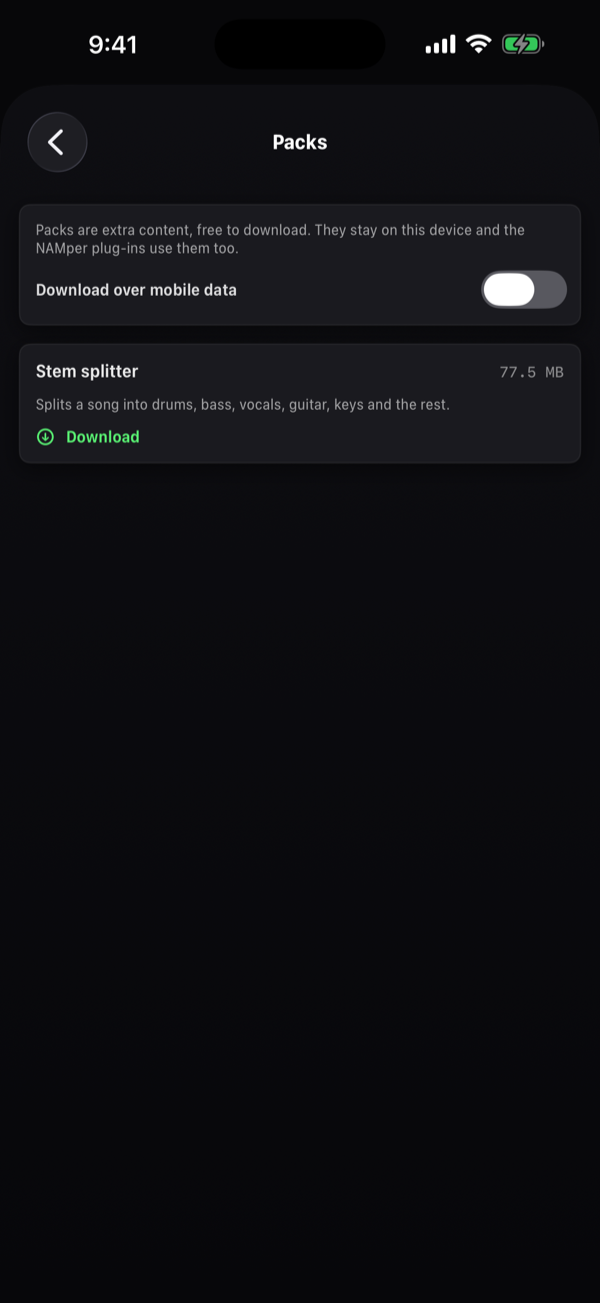
Each pack shows its name, its size and a line on what it does, then where it stands:
| State | What you can do |
|---|---|
| Not downloaded | Download. A bar shows the progress, with Cancel beside it; every file is checked when it lands. |
| Downloaded | Delete — It can be downloaded again. When a newer version is out, Update appears beside it. |
| This pack needs a newer NAMper. | The pack, or its newer version, was made for a later app. It waits until you update NAMper; a version you already have keeps working. |
| Download failed: … | Try again. A download that stopped halfway carries on from where it was. |
On a phone or tablet a pack downloads over Wi-Fi unless Download over mobile data is on; an iPhone or iPad reads Waiting for Wi-Fi meanwhile. A Mac downloads over any network.
The plug-ins do not download packs. Their own Packs page lists what the app has downloaded and uses it: Packs are downloaded in the NAMper app. The plug-in uses the ones that are there.
09.10Prompts
| Row | Control | Default | What it does |
|---|---|---|---|
| Show the support prompt | Switch | On | The sheet that explains NAMper is free and points at the tip jar. It reappears occasionally from the third launch onward; switch this off and it never returns. |
| Offer TONE3000 sign-in on launch | Switch | On | The sheet offering to connect your TONE3000 account so factory presets can download their real amp captures. It appears once per launch while you are signed out. |
| Replay the quick tour | Button | — | Runs the seven-step first-run tour again. |
The quick tour is a spotlight over the live Rig tab, counted n/7, and it is hands-on rather than a slideshow: it walks you through the amp card, the signal chain (you really tap a block), the block editor, presets, the other tabs and a closing step. Next, Skip step and End tour are always available, with Finish at the end. It runs on the Rig tab only.
09.11Reset
Two buttons, each behind a confirmation.
| Button | Dialog | Confirm |
|---|---|---|
| Reset to factory presets | Delete ALL user presets? The four factory rigs come back. | Delete all user presets |
| Reset all settings | Reset every setting (audio, looper, MIDI map, appearance) to defaults? Presets and files stay. Restart the app afterwards. | Reset settings |
The first one wipes your rig presets and restores the four factory rigs. The second leaves every preset and every file alone and only puts the settings back to their defaults.
The footnote reads Settings reset takes effect after an app restart., and it means it. Only the appearance change applies immediately — the audio settings need a relaunch before they are truly back at their defaults. Quit NAMper from the app switcher and open it again.
09.12Diagnostics
NAMper keeps a plain-text engine log recording interface routing and peaks. When one exists, this card offers Share engine log and Clear engine log; when it does not, it reads No engine log yet (it records interface routing and peaks).
Share engine log hands the file to the system share sheet — mail it, AirDrop it, or attach it to a support issue. It is the single most useful thing you can include in a bug report about an interface that will not open, a rate that gets refused or an engine that stops on its own, because it records what actually happened at the audio layer.
Clear engine log empties it. Do that immediately before reproducing a problem and the log you send contains that problem and nothing else.
09.13Not in Settings
Three things people look for here and do not find.
Trigger quantize
The QUANT knob and its grid chip live in the Sample tab header, not in Settings — even though both are global rather than per kit or per pad. See trigger quantize.
Tempo and key
Both are header chips on the Rig tab. Settings only reports them, in the SET card.
MIDI
MIDI in has no global settings: no channel selector, no clock sync to set up. It is omni and always on — every channel is accepted (a mapping row can be told to listen to one), every source connects automatically, and the app publishes its own virtual destination named NAMper.
MIDI out has a card, on the MIDI clock page at the foot of the Control page: MIDI OUT, off until you switch it on. It sends a preset's program change, a scene's, and the looper's MIDI cells as notes, to the clock's Destination — Notes channel and Preset channel; Scene as a Program change or a Control change, on the Scene channel (and the Scene CC); Echo to controllers, which sends a move made in the app back to its mapped CC so motor faders and lit switches follow; the Synth channel for the Synth block's notes and its Bend range; and All notes off for a note left sounding.
If a pedal is not doing anything, the problem is the mapping rather than a setting. Everything MIDI lives on the Control page of Settings — see MIDI & control.